> ## Documentation Index
> Fetch the complete documentation index at: https://docs-staging-docs-add-auth0-cli-management-api-examples.mintlify.site/llms.txt
> Use this file to discover all available pages before exploring further.

> Learn how to configure a progressive profile form using Forms for Actions

# Use Cases: Configure a progressive profile form using Forms

<Card title="Before you start">
  1. Create a [Machine-to-Machine Application](/docs/get-started/auth0-overview/create-applications/machine-to-machine-apps) with the following scopes enabled:

  * `read:users`
  * `update:users`
  * `create:users`
  * `read:users_app_metadata`
  * `update:users_app_metadata`
  * `create:users_app_metadata`

  2. Add a [Vault connection](/docs/customize/forms/vault) using the M2M application credentials.
</Card>

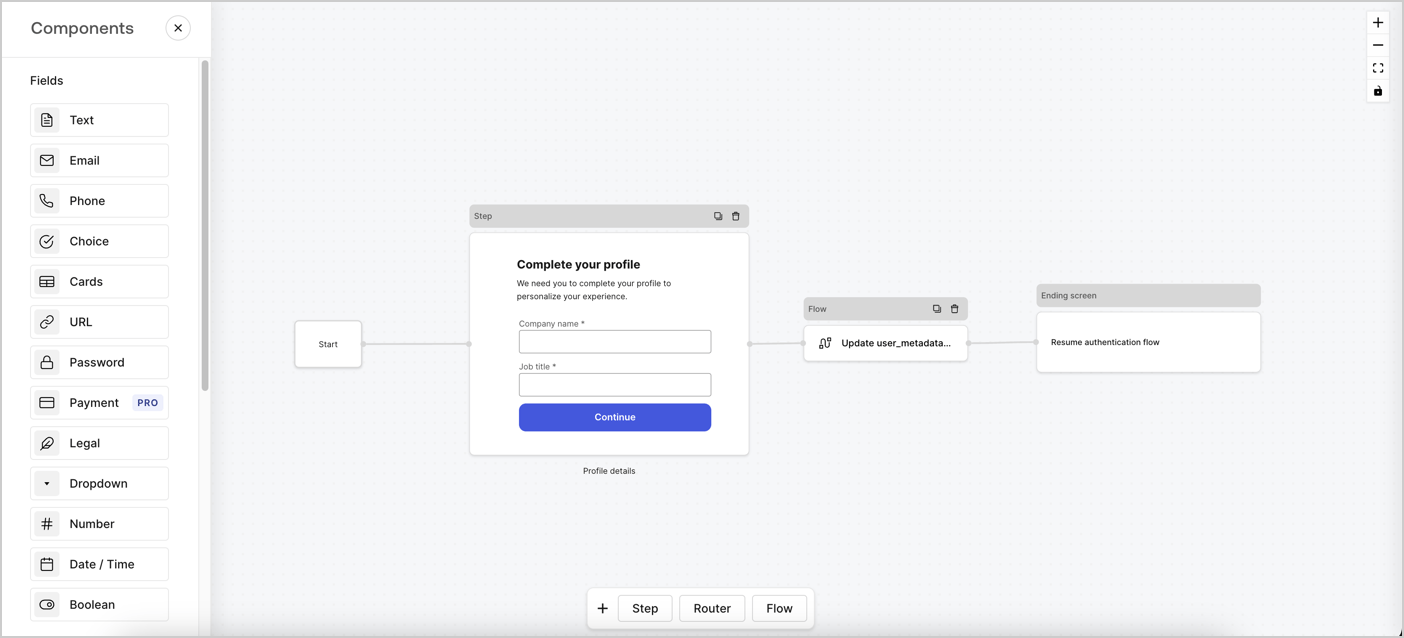
Forms for Actions allows you to create progressive profiling flows to decide when to prompt users to collect missing information, such as company name and job title, and store them as `user_metadata` attributes.
<Frame>
  <img src="https://mintcdn.com/docs-staging-docs-add-auth0-cli-management-api-examples/9uxJKmcIneYMrYYY/docs/images/cdy7uua7fh8z/xUx9YmnHvnAqL19JvNtNP/60dae88f893d4ebe8e3523421e960596/Progressive-profle-overview.png?fit=max&auto=format&n=9uxJKmcIneYMrYYY&q=85&s=5dea088e78306023c5ef7f9351a0ea8a" alt="Dashboard > Actions > Forms > Form" data-og-width="1404" width="1404" data-og-height="638" height="638" data-path="docs/images/cdy7uua7fh8z/xUx9YmnHvnAqL19JvNtNP/60dae88f893d4ebe8e3523421e960596/Progressive-profle-overview.png" data-optimize="true" data-opv="3" srcset="https://mintcdn.com/docs-staging-docs-add-auth0-cli-management-api-examples/9uxJKmcIneYMrYYY/docs/images/cdy7uua7fh8z/xUx9YmnHvnAqL19JvNtNP/60dae88f893d4ebe8e3523421e960596/Progressive-profle-overview.png?w=280&fit=max&auto=format&n=9uxJKmcIneYMrYYY&q=85&s=43ca12594509ba390c5ce6ef8219a218 280w, https://mintcdn.com/docs-staging-docs-add-auth0-cli-management-api-examples/9uxJKmcIneYMrYYY/docs/images/cdy7uua7fh8z/xUx9YmnHvnAqL19JvNtNP/60dae88f893d4ebe8e3523421e960596/Progressive-profle-overview.png?w=560&fit=max&auto=format&n=9uxJKmcIneYMrYYY&q=85&s=66d10da0e7684c12a6c66bc9bd5a9af5 560w, https://mintcdn.com/docs-staging-docs-add-auth0-cli-management-api-examples/9uxJKmcIneYMrYYY/docs/images/cdy7uua7fh8z/xUx9YmnHvnAqL19JvNtNP/60dae88f893d4ebe8e3523421e960596/Progressive-profle-overview.png?w=840&fit=max&auto=format&n=9uxJKmcIneYMrYYY&q=85&s=648c8d1a0c3f193c2ff54e406ca2053b 840w, https://mintcdn.com/docs-staging-docs-add-auth0-cli-management-api-examples/9uxJKmcIneYMrYYY/docs/images/cdy7uua7fh8z/xUx9YmnHvnAqL19JvNtNP/60dae88f893d4ebe8e3523421e960596/Progressive-profle-overview.png?w=1100&fit=max&auto=format&n=9uxJKmcIneYMrYYY&q=85&s=bf26d67ae86d4f7e7b60c651817ca230 1100w, https://mintcdn.com/docs-staging-docs-add-auth0-cli-management-api-examples/9uxJKmcIneYMrYYY/docs/images/cdy7uua7fh8z/xUx9YmnHvnAqL19JvNtNP/60dae88f893d4ebe8e3523421e960596/Progressive-profle-overview.png?w=1650&fit=max&auto=format&n=9uxJKmcIneYMrYYY&q=85&s=1a6714be75ba3751b753d814fd41a712 1650w, https://mintcdn.com/docs-staging-docs-add-auth0-cli-management-api-examples/9uxJKmcIneYMrYYY/docs/images/cdy7uua7fh8z/xUx9YmnHvnAqL19JvNtNP/60dae88f893d4ebe8e3523421e960596/Progressive-profle-overview.png?w=2500&fit=max&auto=format&n=9uxJKmcIneYMrYYY&q=85&s=9f0b628cddfef17993edad7e63ab9a8a 2500w" />
</Frame>

The sections below outline how you can create a progressive profile form using nodes and flows, along with steps for adding your form to a [Post Login Action](/docs/customize/actions/explore-triggers/signup-and-login-triggers/login-trigger).

## Create a form from scratch

Follow these steps to create a form to gather information:

1. Open the Form editor by selecting **Auth0 Dashboard > Actions > Forms.**
2. Select **Create Form** > **Start from scratch**.

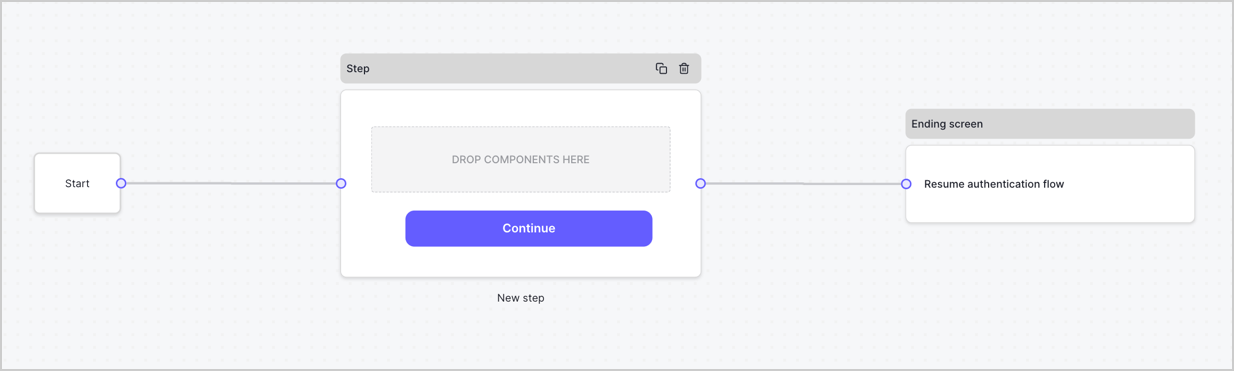
By default, a new form contains a Start node, a Step node, and an Ending screen node.
<Frame>
  <img src="https://mintcdn.com/docs-staging-docs-add-auth0-cli-management-api-examples/EAZzWoY3NNHfDjTC/docs/images/cdy7uua7fh8z/2TZ9jSjgEcARFpULI6hz4R/a4319a1bd482f2ee5cc23100fdb2f42c/New-form-Forms-for-action-use-case.png?fit=max&auto=format&n=EAZzWoY3NNHfDjTC&q=85&s=21344bf7068b22cba63c33c9ad7eaa74" alt="Dashboard > Forms > Use Cases > Form" data-og-width="1234" width="1234" data-og-height="371" height="371" data-path="docs/images/cdy7uua7fh8z/2TZ9jSjgEcARFpULI6hz4R/a4319a1bd482f2ee5cc23100fdb2f42c/New-form-Forms-for-action-use-case.png" data-optimize="true" data-opv="3" srcset="https://mintcdn.com/docs-staging-docs-add-auth0-cli-management-api-examples/EAZzWoY3NNHfDjTC/docs/images/cdy7uua7fh8z/2TZ9jSjgEcARFpULI6hz4R/a4319a1bd482f2ee5cc23100fdb2f42c/New-form-Forms-for-action-use-case.png?w=280&fit=max&auto=format&n=EAZzWoY3NNHfDjTC&q=85&s=6c4e438fb18c9df5f1a68c6ab2e04e36 280w, https://mintcdn.com/docs-staging-docs-add-auth0-cli-management-api-examples/EAZzWoY3NNHfDjTC/docs/images/cdy7uua7fh8z/2TZ9jSjgEcARFpULI6hz4R/a4319a1bd482f2ee5cc23100fdb2f42c/New-form-Forms-for-action-use-case.png?w=560&fit=max&auto=format&n=EAZzWoY3NNHfDjTC&q=85&s=38cc3d4af4b151fb26ebc61c74389aea 560w, https://mintcdn.com/docs-staging-docs-add-auth0-cli-management-api-examples/EAZzWoY3NNHfDjTC/docs/images/cdy7uua7fh8z/2TZ9jSjgEcARFpULI6hz4R/a4319a1bd482f2ee5cc23100fdb2f42c/New-form-Forms-for-action-use-case.png?w=840&fit=max&auto=format&n=EAZzWoY3NNHfDjTC&q=85&s=29b1bbff9d6a886352451f9d0d45bb93 840w, https://mintcdn.com/docs-staging-docs-add-auth0-cli-management-api-examples/EAZzWoY3NNHfDjTC/docs/images/cdy7uua7fh8z/2TZ9jSjgEcARFpULI6hz4R/a4319a1bd482f2ee5cc23100fdb2f42c/New-form-Forms-for-action-use-case.png?w=1100&fit=max&auto=format&n=EAZzWoY3NNHfDjTC&q=85&s=62fd1ac0ef8c3ac1e83d7e04028f5f06 1100w, https://mintcdn.com/docs-staging-docs-add-auth0-cli-management-api-examples/EAZzWoY3NNHfDjTC/docs/images/cdy7uua7fh8z/2TZ9jSjgEcARFpULI6hz4R/a4319a1bd482f2ee5cc23100fdb2f42c/New-form-Forms-for-action-use-case.png?w=1650&fit=max&auto=format&n=EAZzWoY3NNHfDjTC&q=85&s=9c2be13822b29909360bc0be365ae18a 1650w, https://mintcdn.com/docs-staging-docs-add-auth0-cli-management-api-examples/EAZzWoY3NNHfDjTC/docs/images/cdy7uua7fh8z/2TZ9jSjgEcARFpULI6hz4R/a4319a1bd482f2ee5cc23100fdb2f42c/New-form-Forms-for-action-use-case.png?w=2500&fit=max&auto=format&n=EAZzWoY3NNHfDjTC&q=85&s=54c55ab40588997fd2119b36a171040f 2500w" />
</Frame>

### Configure the Step node

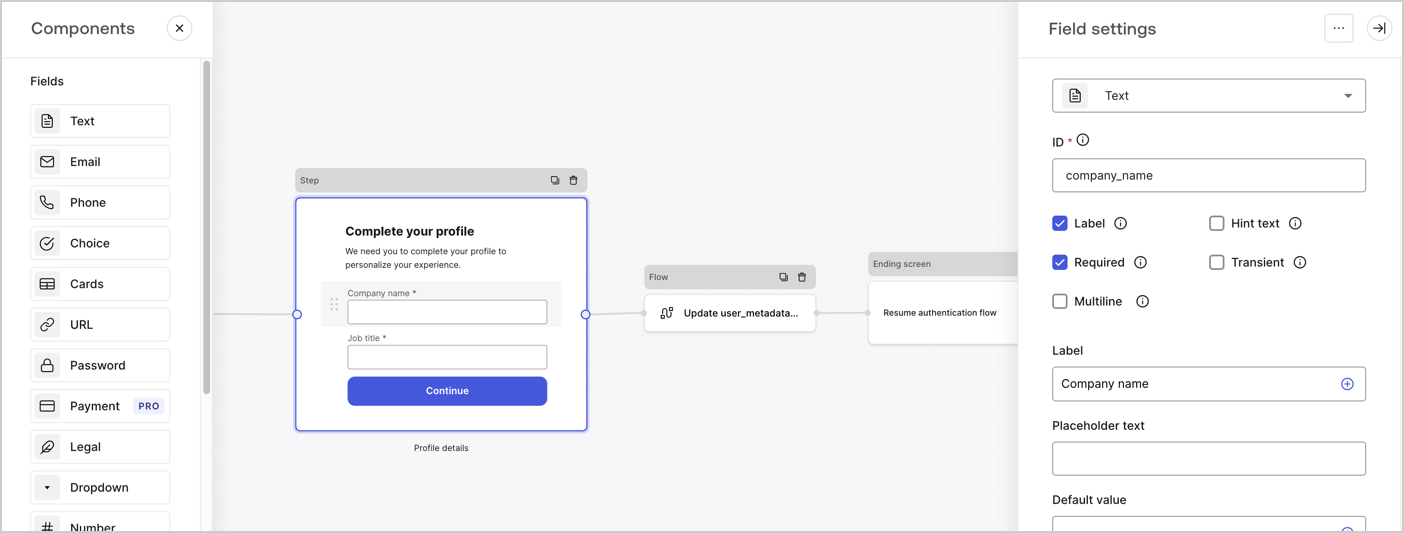
The Step node is the graphical interface visible to users. Add [Fields](/docs/customize/forms/nodes-and-components) to the Step node to collect the user's company name and job title values by following these steps:

1. Drag a **Rich text** field from the **Components menu** into the **Step** node.

   * **Rich text**: Enter a custom message.

     * **Example**: `Complete your profile! We need you to complete your profile to personalize your experience.`
   * Select **Save**.
2. Drag a **Text** field into the **Step** node.

   * **ID**: Enter `company_name`.
   * **Label**: Enable the checkbox.
   * **Label**: Enter `Company name`.
   * **Required**: Enable the checkbox.
   * Select **Save**.
3. Drag a **Text** field into the **Step** node.

   1. **ID**: Enter `job_title`.
   2. **Label**: Enter `Job title`.
   3. **Label**: Enable the checkbox.
   4. **Required**: Enable the checkbox.
   5. Select **Save**.
4. Select **Publish** to save.
<Frame>
  <img src="https://mintcdn.com/docs-staging-docs-add-auth0-cli-management-api-examples/08rPOrmgU-lTUmEw/docs/images/cdy7uua7fh8z/6H1lRzwKyYioQyQJ9MtIoM/aa248e92fc028a68a5b92ff361a11644/progressive-profile-step.png?fit=max&auto=format&n=08rPOrmgU-lTUmEw&q=85&s=7135ada9adef3fff053a201be3bf6846" alt="Dashboard > Actions > Forms > Form > Step node" data-og-width="1404" width="1404" data-og-height="533" height="533" data-path="docs/images/cdy7uua7fh8z/6H1lRzwKyYioQyQJ9MtIoM/aa248e92fc028a68a5b92ff361a11644/progressive-profile-step.png" data-optimize="true" data-opv="3" srcset="https://mintcdn.com/docs-staging-docs-add-auth0-cli-management-api-examples/08rPOrmgU-lTUmEw/docs/images/cdy7uua7fh8z/6H1lRzwKyYioQyQJ9MtIoM/aa248e92fc028a68a5b92ff361a11644/progressive-profile-step.png?w=280&fit=max&auto=format&n=08rPOrmgU-lTUmEw&q=85&s=32e312f77a885c0364e360502eea0dbd 280w, https://mintcdn.com/docs-staging-docs-add-auth0-cli-management-api-examples/08rPOrmgU-lTUmEw/docs/images/cdy7uua7fh8z/6H1lRzwKyYioQyQJ9MtIoM/aa248e92fc028a68a5b92ff361a11644/progressive-profile-step.png?w=560&fit=max&auto=format&n=08rPOrmgU-lTUmEw&q=85&s=87eb8e187323c1aced007dde656f9232 560w, https://mintcdn.com/docs-staging-docs-add-auth0-cli-management-api-examples/08rPOrmgU-lTUmEw/docs/images/cdy7uua7fh8z/6H1lRzwKyYioQyQJ9MtIoM/aa248e92fc028a68a5b92ff361a11644/progressive-profile-step.png?w=840&fit=max&auto=format&n=08rPOrmgU-lTUmEw&q=85&s=c9d14e2f70395b06efc9969493cc7f23 840w, https://mintcdn.com/docs-staging-docs-add-auth0-cli-management-api-examples/08rPOrmgU-lTUmEw/docs/images/cdy7uua7fh8z/6H1lRzwKyYioQyQJ9MtIoM/aa248e92fc028a68a5b92ff361a11644/progressive-profile-step.png?w=1100&fit=max&auto=format&n=08rPOrmgU-lTUmEw&q=85&s=f63d625d3a4820804e464214ce4881a9 1100w, https://mintcdn.com/docs-staging-docs-add-auth0-cli-management-api-examples/08rPOrmgU-lTUmEw/docs/images/cdy7uua7fh8z/6H1lRzwKyYioQyQJ9MtIoM/aa248e92fc028a68a5b92ff361a11644/progressive-profile-step.png?w=1650&fit=max&auto=format&n=08rPOrmgU-lTUmEw&q=85&s=c38b206deaf5491c9c706a8a800318a7 1650w, https://mintcdn.com/docs-staging-docs-add-auth0-cli-management-api-examples/08rPOrmgU-lTUmEw/docs/images/cdy7uua7fh8z/6H1lRzwKyYioQyQJ9MtIoM/aa248e92fc028a68a5b92ff361a11644/progressive-profile-step.png?w=2500&fit=max&auto=format&n=08rPOrmgU-lTUmEw&q=85&s=82fead48240c68617db08bd0d4d759ec 2500w" />
</Frame>

### Configure the flow node

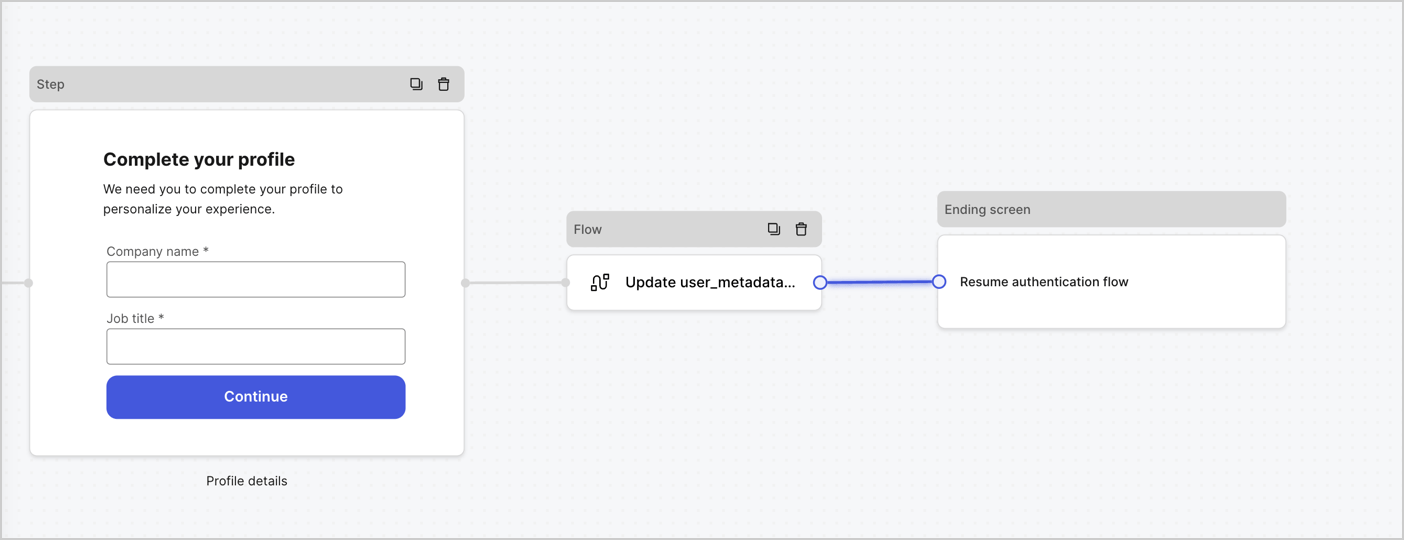
Add a **Flow** node after the **Step** node to update the `user_metadata` and resume the authentication flow by following these steps:

1. Select **Flow** from the bottom of the Form editor.
2. Remove the existing link between the **Step** and **Ending Screen** nodes.
3. Select the new **Flow** > **Click to add a flow** > **Create a new flow.**

   * Enter `Update user_metadata` in the **Name** field.
   * Select **Create**.
   * Select **Save**.
4. Link the **Flow** node to the **Step** and **Ending Screen** nodes as pictured below.
5. Select **Publish** to save.
<Frame>
  <img src="https://mintcdn.com/docs-staging-docs-add-auth0-cli-management-api-examples/LXfyzxpAmheuDMEk/docs/images/cdy7uua7fh8z/5C91DaWn4LGtJT9BF87ssu/095171d0c452a287c44bfde12fd6d13f/link-nodes.png?fit=max&auto=format&n=LXfyzxpAmheuDMEk&q=85&s=2437b468b244c055f019c091b1ac6935" alt="Dashboard > Actions > Forms > Form" data-og-width="1404" width="1404" data-og-height="540" height="540" data-path="docs/images/cdy7uua7fh8z/5C91DaWn4LGtJT9BF87ssu/095171d0c452a287c44bfde12fd6d13f/link-nodes.png" data-optimize="true" data-opv="3" srcset="https://mintcdn.com/docs-staging-docs-add-auth0-cli-management-api-examples/LXfyzxpAmheuDMEk/docs/images/cdy7uua7fh8z/5C91DaWn4LGtJT9BF87ssu/095171d0c452a287c44bfde12fd6d13f/link-nodes.png?w=280&fit=max&auto=format&n=LXfyzxpAmheuDMEk&q=85&s=10b05f8d6a51dd9a812ae4e778984906 280w, https://mintcdn.com/docs-staging-docs-add-auth0-cli-management-api-examples/LXfyzxpAmheuDMEk/docs/images/cdy7uua7fh8z/5C91DaWn4LGtJT9BF87ssu/095171d0c452a287c44bfde12fd6d13f/link-nodes.png?w=560&fit=max&auto=format&n=LXfyzxpAmheuDMEk&q=85&s=fac6010f656a5ca33e03960533e99b1b 560w, https://mintcdn.com/docs-staging-docs-add-auth0-cli-management-api-examples/LXfyzxpAmheuDMEk/docs/images/cdy7uua7fh8z/5C91DaWn4LGtJT9BF87ssu/095171d0c452a287c44bfde12fd6d13f/link-nodes.png?w=840&fit=max&auto=format&n=LXfyzxpAmheuDMEk&q=85&s=71e1bd4067e2978f0427d35d2b907d1a 840w, https://mintcdn.com/docs-staging-docs-add-auth0-cli-management-api-examples/LXfyzxpAmheuDMEk/docs/images/cdy7uua7fh8z/5C91DaWn4LGtJT9BF87ssu/095171d0c452a287c44bfde12fd6d13f/link-nodes.png?w=1100&fit=max&auto=format&n=LXfyzxpAmheuDMEk&q=85&s=a1621093ffe09ea6735362cb5563aa9d 1100w, https://mintcdn.com/docs-staging-docs-add-auth0-cli-management-api-examples/LXfyzxpAmheuDMEk/docs/images/cdy7uua7fh8z/5C91DaWn4LGtJT9BF87ssu/095171d0c452a287c44bfde12fd6d13f/link-nodes.png?w=1650&fit=max&auto=format&n=LXfyzxpAmheuDMEk&q=85&s=a5dc4bfacfecd25733414fd39273b9cc 1650w, https://mintcdn.com/docs-staging-docs-add-auth0-cli-management-api-examples/LXfyzxpAmheuDMEk/docs/images/cdy7uua7fh8z/5C91DaWn4LGtJT9BF87ssu/095171d0c452a287c44bfde12fd6d13f/link-nodes.png?w=2500&fit=max&auto=format&n=LXfyzxpAmheuDMEk&q=85&s=f01ca2ae7f5ffd3fbcf74dddb30283a4 2500w" />
</Frame>

Add an Auth0 Update user action to the flow by following these steps:

1. Select the **Update user\_metadata** flow, then select the **Edit Flow** to open the Flow editor in a new tab.
2. Below the **Start** action, select the **+** icon to add an **Update user** action. Complete the fields below, then select **Save** to continue.

   * **Connection**: Select from the dropdown the Vault connection to your M2M application.

   * **User ID**: Enter `{{context.user.user_id}}`.

   * **Body**: Copy and paste the following code to update the user\_metadata with `job_title` and `company_name` properties.

     ```json lines theme={null}
     {
        "user_metadata": {
           "job_title": "{{fields.job_title}}",
           "company_name": "{{fields.company_name}}"
        }
     }
     ```

   * Select **Save**.
3. Select **Publish** to save.

<Frame>
  <img src="https://mintcdn.com/docs-staging-docs-add-auth0-cli-management-api-examples/ywaoBgNKLkoXRhJz/docs/images/cdy7uua7fh8z/65Jx4W5oIZJyyvA8z4HqIx/0661b1a8ca6361c54fc4fef07ba59f0b/update-user.png?fit=max&auto=format&n=ywaoBgNKLkoXRhJz&q=85&s=db8f0d73047b5ec965d855876af0b385" alt="Dashboard > Actions > Forms > Flows" data-og-width="1404" width="1404" data-og-height="244" height="244" data-path="docs/images/cdy7uua7fh8z/65Jx4W5oIZJyyvA8z4HqIx/0661b1a8ca6361c54fc4fef07ba59f0b/update-user.png" data-optimize="true" data-opv="3" srcset="https://mintcdn.com/docs-staging-docs-add-auth0-cli-management-api-examples/ywaoBgNKLkoXRhJz/docs/images/cdy7uua7fh8z/65Jx4W5oIZJyyvA8z4HqIx/0661b1a8ca6361c54fc4fef07ba59f0b/update-user.png?w=280&fit=max&auto=format&n=ywaoBgNKLkoXRhJz&q=85&s=0d551261fac91b5c12f82e835c31a3c4 280w, https://mintcdn.com/docs-staging-docs-add-auth0-cli-management-api-examples/ywaoBgNKLkoXRhJz/docs/images/cdy7uua7fh8z/65Jx4W5oIZJyyvA8z4HqIx/0661b1a8ca6361c54fc4fef07ba59f0b/update-user.png?w=560&fit=max&auto=format&n=ywaoBgNKLkoXRhJz&q=85&s=5e90c9c31e5659fe61d8eb6ee9091eac 560w, https://mintcdn.com/docs-staging-docs-add-auth0-cli-management-api-examples/ywaoBgNKLkoXRhJz/docs/images/cdy7uua7fh8z/65Jx4W5oIZJyyvA8z4HqIx/0661b1a8ca6361c54fc4fef07ba59f0b/update-user.png?w=840&fit=max&auto=format&n=ywaoBgNKLkoXRhJz&q=85&s=46c6fbcb9a1a6a7dd38f62782b6b23cb 840w, https://mintcdn.com/docs-staging-docs-add-auth0-cli-management-api-examples/ywaoBgNKLkoXRhJz/docs/images/cdy7uua7fh8z/65Jx4W5oIZJyyvA8z4HqIx/0661b1a8ca6361c54fc4fef07ba59f0b/update-user.png?w=1100&fit=max&auto=format&n=ywaoBgNKLkoXRhJz&q=85&s=617e8a537a00fd7d0436d67f5637039c 1100w, https://mintcdn.com/docs-staging-docs-add-auth0-cli-management-api-examples/ywaoBgNKLkoXRhJz/docs/images/cdy7uua7fh8z/65Jx4W5oIZJyyvA8z4HqIx/0661b1a8ca6361c54fc4fef07ba59f0b/update-user.png?w=1650&fit=max&auto=format&n=ywaoBgNKLkoXRhJz&q=85&s=238c5461d22101ae63487f15a57869b1 1650w, https://mintcdn.com/docs-staging-docs-add-auth0-cli-management-api-examples/ywaoBgNKLkoXRhJz/docs/images/cdy7uua7fh8z/65Jx4W5oIZJyyvA8z4HqIx/0661b1a8ca6361c54fc4fef07ba59f0b/update-user.png?w=2500&fit=max&auto=format&n=ywaoBgNKLkoXRhJz&q=85&s=fff91056d5b7766da22b3ab8d1b8e5b9 2500w" />
</Frame>

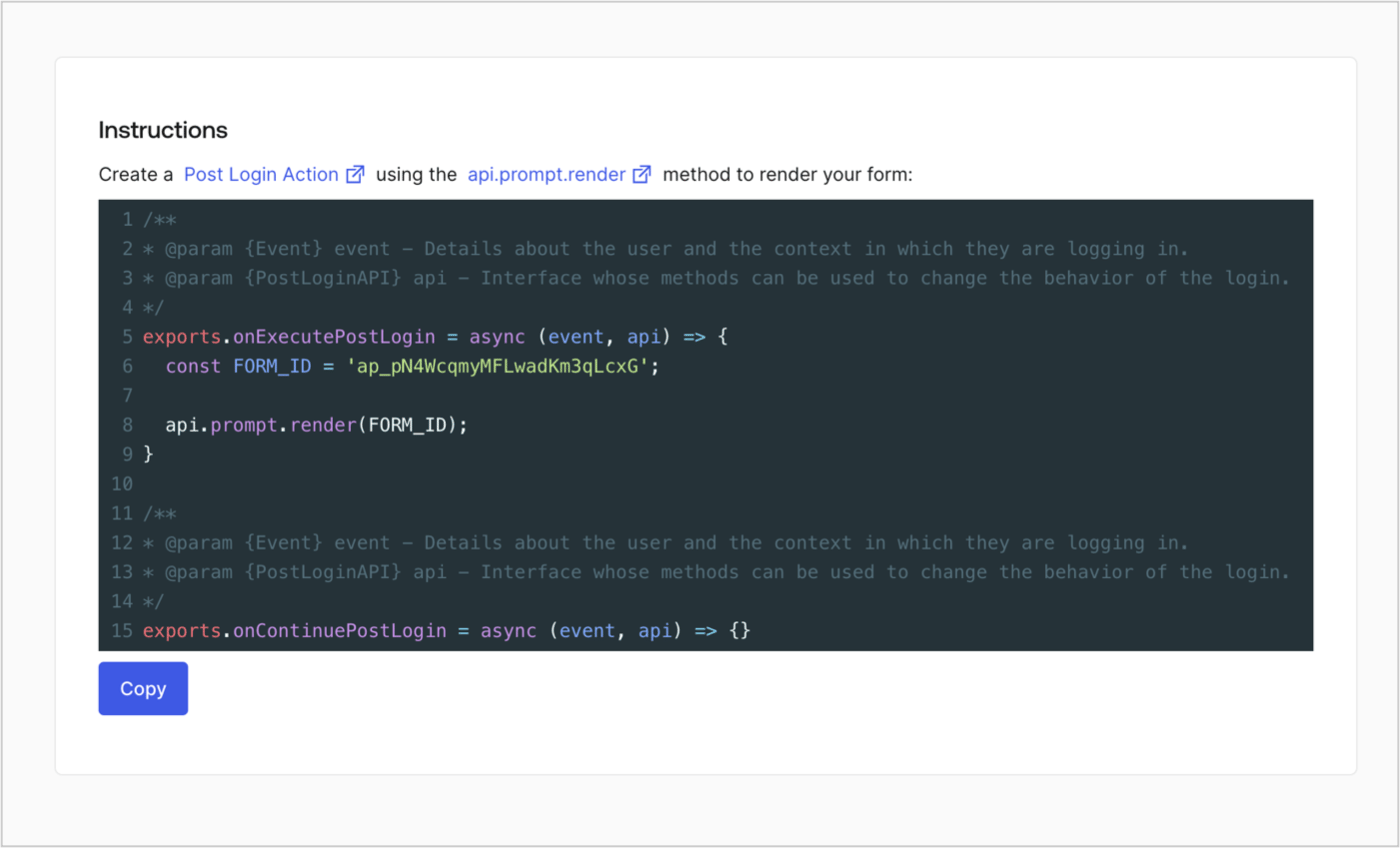
### Retrieve the form render code

Retrieve the form render code to visually render the form with a custom Post Login Action by following these steps:

* From the Form editor, select **`<> Render`**.
* Select **Copy**.
<Frame>
  <img src="https://mintcdn.com/docs-staging-docs-add-auth0-cli-management-api-examples/IXSydCfMxe30z71m/docs/images/cdy7uua7fh8z/2EIUzc539sq9lwoTKbjoJv/496a864c0fc44a782c9cadca119dbfb0/embed.png?fit=max&auto=format&n=IXSydCfMxe30z71m&q=85&s=52cf918068244a43728e7f78c5b75460" alt="Dashboard > Actions > Forms > Form > Embed" data-og-width="1400" width="1400" data-og-height="848" height="848" data-path="docs/images/cdy7uua7fh8z/2EIUzc539sq9lwoTKbjoJv/496a864c0fc44a782c9cadca119dbfb0/embed.png" data-optimize="true" data-opv="3" srcset="https://mintcdn.com/docs-staging-docs-add-auth0-cli-management-api-examples/IXSydCfMxe30z71m/docs/images/cdy7uua7fh8z/2EIUzc539sq9lwoTKbjoJv/496a864c0fc44a782c9cadca119dbfb0/embed.png?w=280&fit=max&auto=format&n=IXSydCfMxe30z71m&q=85&s=cc961d992382f09e58fe4ca4d95e1d58 280w, https://mintcdn.com/docs-staging-docs-add-auth0-cli-management-api-examples/IXSydCfMxe30z71m/docs/images/cdy7uua7fh8z/2EIUzc539sq9lwoTKbjoJv/496a864c0fc44a782c9cadca119dbfb0/embed.png?w=560&fit=max&auto=format&n=IXSydCfMxe30z71m&q=85&s=04ea92ec56b504e379aaca56b5e83db2 560w, https://mintcdn.com/docs-staging-docs-add-auth0-cli-management-api-examples/IXSydCfMxe30z71m/docs/images/cdy7uua7fh8z/2EIUzc539sq9lwoTKbjoJv/496a864c0fc44a782c9cadca119dbfb0/embed.png?w=840&fit=max&auto=format&n=IXSydCfMxe30z71m&q=85&s=87fbea3f213941189744393a238688a5 840w, https://mintcdn.com/docs-staging-docs-add-auth0-cli-management-api-examples/IXSydCfMxe30z71m/docs/images/cdy7uua7fh8z/2EIUzc539sq9lwoTKbjoJv/496a864c0fc44a782c9cadca119dbfb0/embed.png?w=1100&fit=max&auto=format&n=IXSydCfMxe30z71m&q=85&s=7681dc1d4f4a56833d5c2a1edf053063 1100w, https://mintcdn.com/docs-staging-docs-add-auth0-cli-management-api-examples/IXSydCfMxe30z71m/docs/images/cdy7uua7fh8z/2EIUzc539sq9lwoTKbjoJv/496a864c0fc44a782c9cadca119dbfb0/embed.png?w=1650&fit=max&auto=format&n=IXSydCfMxe30z71m&q=85&s=fdbe50f57f545bd3792afdcfd80bbd4e 1650w, https://mintcdn.com/docs-staging-docs-add-auth0-cli-management-api-examples/IXSydCfMxe30z71m/docs/images/cdy7uua7fh8z/2EIUzc539sq9lwoTKbjoJv/496a864c0fc44a782c9cadca119dbfb0/embed.png?w=2500&fit=max&auto=format&n=IXSydCfMxe30z71m&q=85&s=e5e0fc912d52d432f38aebd9e7653bc8 2500w" />
</Frame>

## Create a Post Login Action

Create a post-login Action to render your form by following these steps:

1. Navigate to **Auth0 Dashboard > Actions > Flows > Login.**
2. Select the **+** icon and select **Build from scratch**:

   * **Name**: Enter `Render Progressive Profile Form`.
   * **Trigger**: Select `Login / Post Login`.
   * **Runtime**: Select the recommended version.
3. Select **Create**.

To configure the post-login Action:

1. Delete the existing code from the Code editor.
2. Paste the form embed code into the Code editor.
3. Edit the code to define the conditional logic that will render the form.

   ```javascript lines theme={null}
   /**
   * @param {Event} event - Details about the user and the context in which they are logging in.
   * @param {PostLoginAPI} api - Interface whose methods can be used to change the behavior of the login.
   */
   exports.onExecutePostLogin = async (event, api) => {
     const FORM_ID = 'REPLACE_WITH_YOUR_FORM_ID';

     if (
       event.stats.logins_count > 2 &&
       !event.user.user_metadata.company_name &&
       !event.user.user_metadata.job_title
     ) {
       api.prompt.render(FORM_ID);
     }
   }

   exports.onContinuePostLogin = async (event, api) => { }
   ```

   <Callout icon="file-lines" color="#0EA5E9" iconType="regular">
     The example code above will render the form when a user has a login count > 2 and is missing the user metadata company\_name and job\_title properties.
   </Callout>
4. Select **Deploy.**
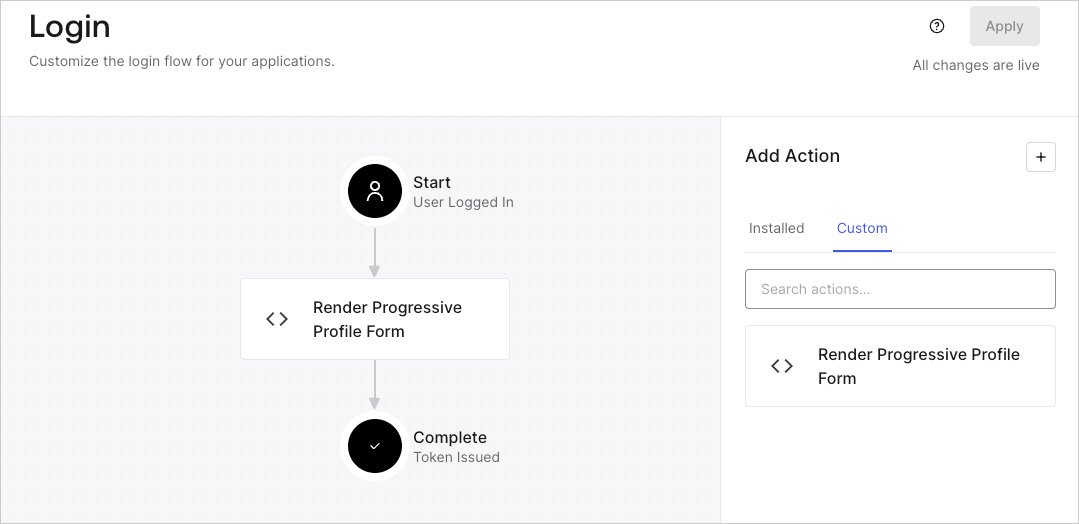
5. Drag and Drop the **Render Progressive Profile Form** Action to the **Login** flow.
   <Frame>
     <img src="https://mintcdn.com/docs-staging-docs-add-auth0-cli-management-api-examples/MQ0TRGMYLmX4o1s7/docs/images/cdy7uua7fh8z/1QjjZdpTqTxx012UDN4xk9/99fba5ef4068a5688f1762eea7f42976/renderprogessiveprofile.png?fit=max&auto=format&n=MQ0TRGMYLmX4o1s7&q=85&s=1e9bbdd5fde8540d67503a6dd50c5397" alt="Dashboard > Forms > Use Cases Progressive Profile Login Action" data-og-width="1079" width="1079" data-og-height="524" height="524" data-path="docs/images/cdy7uua7fh8z/1QjjZdpTqTxx012UDN4xk9/99fba5ef4068a5688f1762eea7f42976/renderprogessiveprofile.png" data-optimize="true" data-opv="3" srcset="https://mintcdn.com/docs-staging-docs-add-auth0-cli-management-api-examples/MQ0TRGMYLmX4o1s7/docs/images/cdy7uua7fh8z/1QjjZdpTqTxx012UDN4xk9/99fba5ef4068a5688f1762eea7f42976/renderprogessiveprofile.png?w=280&fit=max&auto=format&n=MQ0TRGMYLmX4o1s7&q=85&s=3d42a1cfdab1cbde7ffd104aac332013 280w, https://mintcdn.com/docs-staging-docs-add-auth0-cli-management-api-examples/MQ0TRGMYLmX4o1s7/docs/images/cdy7uua7fh8z/1QjjZdpTqTxx012UDN4xk9/99fba5ef4068a5688f1762eea7f42976/renderprogessiveprofile.png?w=560&fit=max&auto=format&n=MQ0TRGMYLmX4o1s7&q=85&s=a3df159e3046dafc4ed6499fcd766955 560w, https://mintcdn.com/docs-staging-docs-add-auth0-cli-management-api-examples/MQ0TRGMYLmX4o1s7/docs/images/cdy7uua7fh8z/1QjjZdpTqTxx012UDN4xk9/99fba5ef4068a5688f1762eea7f42976/renderprogessiveprofile.png?w=840&fit=max&auto=format&n=MQ0TRGMYLmX4o1s7&q=85&s=b675bf8d97b3ae7c0cca9a9543136373 840w, https://mintcdn.com/docs-staging-docs-add-auth0-cli-management-api-examples/MQ0TRGMYLmX4o1s7/docs/images/cdy7uua7fh8z/1QjjZdpTqTxx012UDN4xk9/99fba5ef4068a5688f1762eea7f42976/renderprogessiveprofile.png?w=1100&fit=max&auto=format&n=MQ0TRGMYLmX4o1s7&q=85&s=97acdcf5226362cd65fb5ad96189299a 1100w, https://mintcdn.com/docs-staging-docs-add-auth0-cli-management-api-examples/MQ0TRGMYLmX4o1s7/docs/images/cdy7uua7fh8z/1QjjZdpTqTxx012UDN4xk9/99fba5ef4068a5688f1762eea7f42976/renderprogessiveprofile.png?w=1650&fit=max&auto=format&n=MQ0TRGMYLmX4o1s7&q=85&s=a514e491d783880525911a72d8c508e6 1650w, https://mintcdn.com/docs-staging-docs-add-auth0-cli-management-api-examples/MQ0TRGMYLmX4o1s7/docs/images/cdy7uua7fh8z/1QjjZdpTqTxx012UDN4xk9/99fba5ef4068a5688f1762eea7f42976/renderprogessiveprofile.png?w=2500&fit=max&auto=format&n=MQ0TRGMYLmX4o1s7&q=85&s=5401cbb51333354a6265a54dcc5afe91 2500w" />
   </Frame>
6. Select **Apply**.

### Test implementation

Test the implementation by following these steps:

1. Log in with an existing user whose login count is greater than 2 and their `user_metadata` attributes `company_name` and `job_title` have no values.
2. The post-login action in the Login flow will render the form and prompt for the information.
3. Select **Auth0 Dashboard > User Management > Users,** locate the user and verify that the `user_metadata` attributes `company_name` and `job_title` contain information.
